
Managing files
Search Salesforce files, upload and preview documents, and use Better Files to download or delete selected files together.
On this page
Open the full file list
Open a record with Better Files or Better Files React and select View All. Each component opens its corresponding related list, with search, row selection, and bulk actions.
Search and filter
Type part of a file name into the search box. Search matches file titles, not the contents of documents.
If a file-type filter is available, choose a category or extension to narrow the results. Clear the search and choose All files to return to the unfiltered list. Component settings and file permissions still apply.
Use Get More Records in the original component or Load more in React to load additional files.
In React, select-all selects only the loaded rows. Changing the search, sort order, or file-type filter clears the selection. Review the selection count before a bulk action.
Download multiple files
- Open View All on the record.
- Select the checkboxes beside the files you need.
- Review the selection count.
- Choose Download in the toolbar.
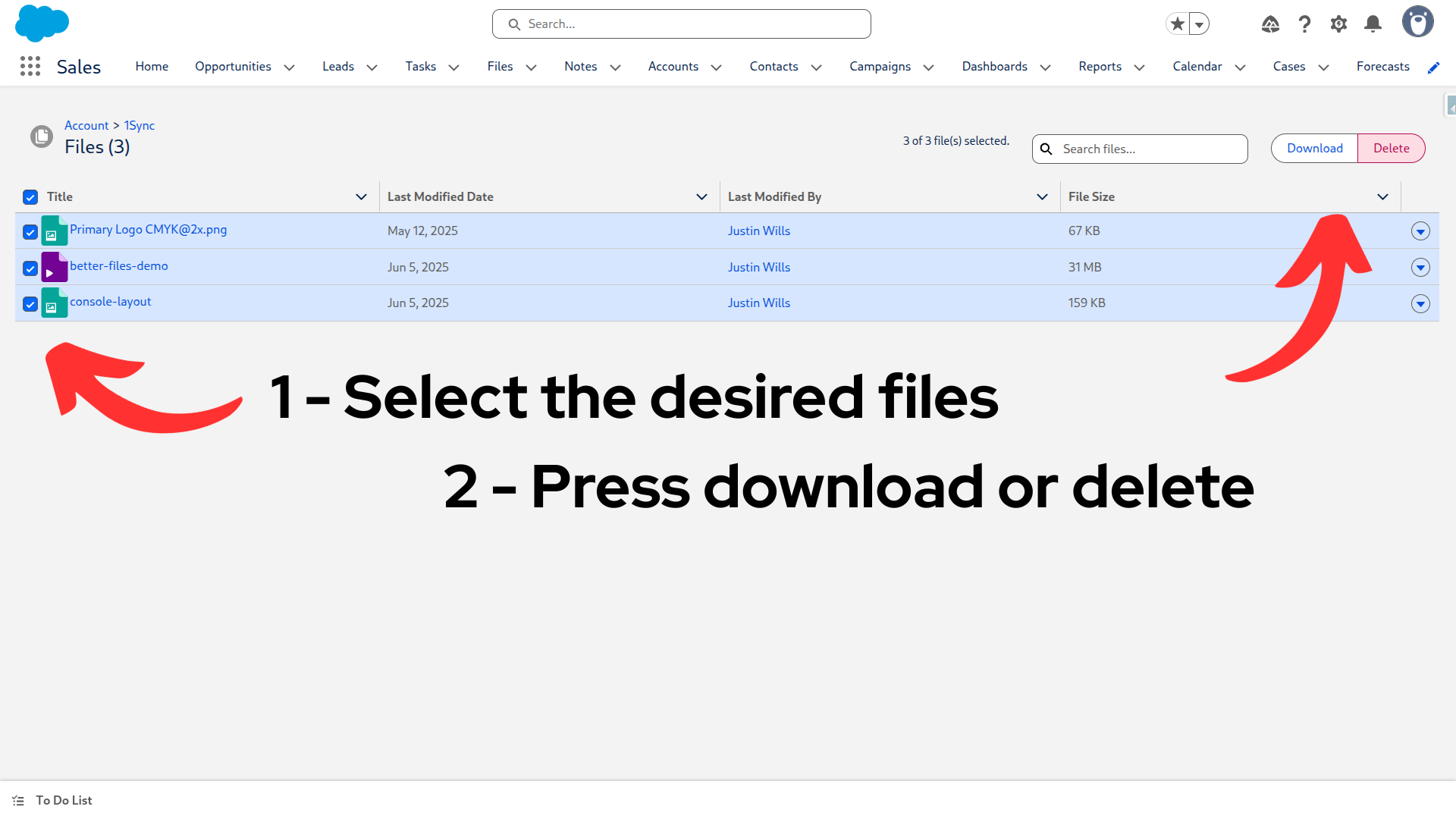
The screenshot shows the original component. The same select-and-download workflow is available in React.
For a single file, use Download in that row’s action menu.
Delete multiple files
- Open View All and select the files to delete.
- Review the file names and selection count.
- Choose Delete.
- Review the confirmation dialog and confirm only the files you intend to delete.
Deleting a file deletes the Salesforce file itself, including its availability through other records that share it. This action does not just remove the link from the current record. You need permission to delete each selected file.
Upload files
Use Upload Files on the record-page component. In a narrow page region, look in the component’s overflow menu for the upload action.
Choose files with extensions allowed by the component’s accepted-formats setting. Multiple selection depends on its multiple-upload setting. See the configuration labels for each component.
Better Files
The original component uses Salesforce’s upload experience. The list refreshes after a successful upload.
Better Files React
Use Upload Files or drag files onto the upload target. The embedded React component supports files up to 100 MB each, subject to the org’s upload limit and supported file types. Empty files are rejected.
The upload dialog shows Waiting, Uploading, Uploaded, or Failed for each file. Its progress counts processed files, not uploaded bytes.
Closing the dialog keeps uploads running. Reopen it to check progress. Navigating to another record stops queued uploads; an upload already being finalized may still finish against the original record. There is no per-file cancel or resumable-upload control.
Preview files
Select a file title or choose Preview from its row menu to open Salesforce’s file preview. Some file formats do not have a preview; download the file to open it with a suitable application.