Managing your team
How Location Admins add and remove colleagues on the Team page, what access colleagues get, and how to check your Better B2B setup.
On this page
Location Admins manage their team from the Team page in customer accounts. The location must be enabled first.
Add a colleague
- Open the store’s customer account sign-in page and sign in with the Location Admin’s email. Complete Shopify’s sign-in verification.
- Choose the correct company location, then open Team.
- Click Add team member, then enter the colleague’s first name, last name, and email.
- Click Add team member and wait for a confirmed result.
- Tell your colleague to sign in with that email address.
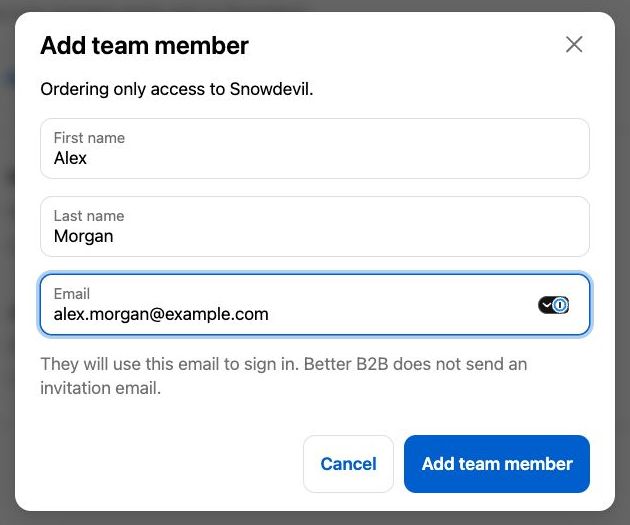
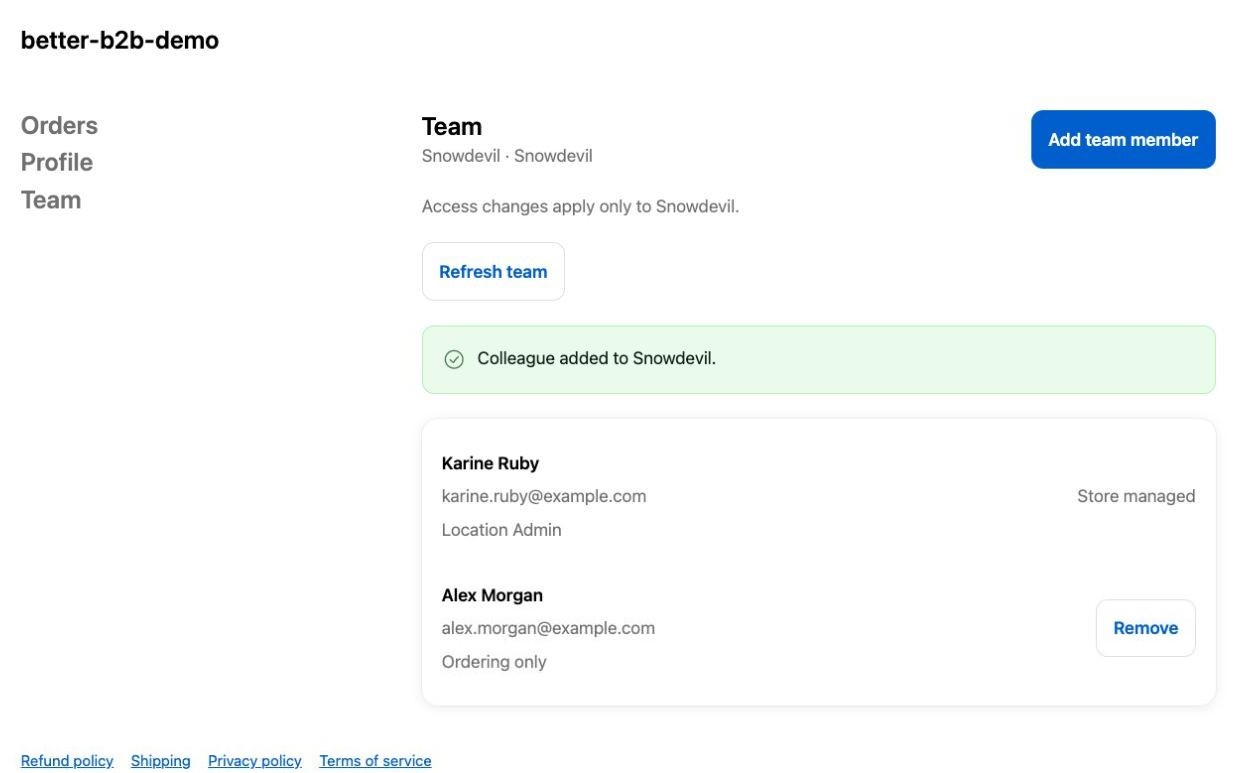
Better B2B doesn’t send an invitation email. Your colleague gets Ordering only access to the selected location, and they can’t manage the team. If they already have an eligible customer record, it’s reused without overwriting their profile.
Remove a colleague
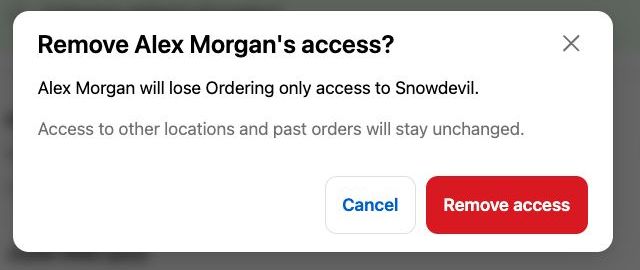
- Open Team and click Remove beside the colleague.
- Confirm Remove access.
This removes the colleague’s Ordering only assignment at that location. The customer, their access to other locations, and their past orders stay as they are.
Location Admins can’t be removed from the Team page. The merchant manages them in Shopify.
Check your setup
- Confirm the location shows as enabled in Team access.
- Sign in as its Location Admin and confirm the Team page loads that location.
- Add a colleague and confirm their Ordering only assignment in Shopify.
- Sign in as the colleague and confirm they can access the location, but can’t manage the team.
- Remove their access and confirm that other locations and past orders are unchanged.
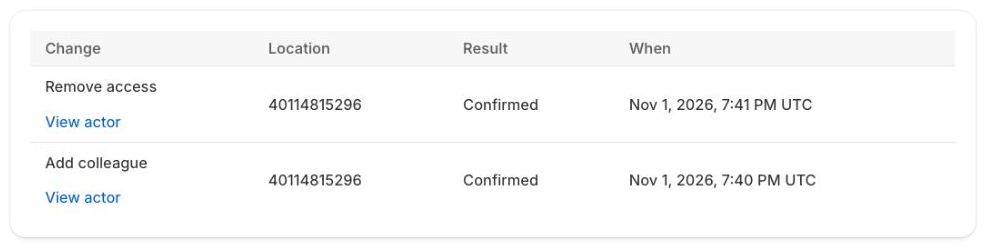
- Open Better B2B → Activity and check for confirmed add and remove results.
Use a private browser window for the colleague, so the Location Admin’s session stays separate.